
Canvas and Email Login Instructions
Canvas Login Instructions
- Go to https://www.jeffersonstate.edu/
- Select the myJSCC link (located under Student Hub, Explore JSCC, or Quick Links)
- Select “Click here to log into the New Portal“
- Enter your A#@alabama.edu account in the Username box. You must include @alabama.edu at the end.
- Enter the password for your alabama.edu account in the Password box.
- Select the Canvas card link. Enter your A#@alabama.edu credentials again if requested.
- Your Canvas dashboard should appear.
Access Your Canvas Account
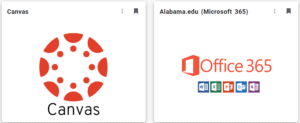
You should see the “Canvas” card shown below. If it does not appear then scroll down and select “Discover More.”
Select the “Canvas” card link. If an account selection box appears, then Select your A#@alabama.edu account and enter your password. This should open your Canvas dashboard.
Access Your alabama.edu Email Account
You should see the “Alabama.edu (Microsoft 365)” card shown above. If it does not appear then scroll down and select “Discover More.”
- Select the “Alabama.edu (Microsoft 365)” card link.
- If an account selection box appears, then Select your A#@alabama.edu account. This should open a welcome page with a “Sign in” box.
- Select the “Sign in” box. If may be asked to sign in again with your A#@alabama.edu credentials.
- A “Welcome to Microsoft 365” page with the ACCS REAL.Life.EDUCATION logo at the top should open.
- Select the Outlook button in the left-margin menu to open your alabama.edu Inbox.
Need Help?
If you need any help or have any questions please contact the helpdesk at [email protected] or by calling (205) 856-6088.